Timetable
One weekly timetable, no double-booked teachers.
Bell timings, lessons for every section, substitutes for absent teachers and a printable PDF.
The school week in one place: the bell timings, which subject each class section has in each period, who teaches it, and who covers when a teacher is away.
Where to find it: Academic → Timetable.
Who uses it
Roles
- SuperAdmin and Principal set the periods and build every class timetable.
- Teachers see their own week, including lessons they are covering for others.
- Students and parents see their class timetable.
What you can do
Today · live
- Set the school day: periods with start and end times, plus non-teaching slots such as assembly, breaks and lunch.
- Fill each class section's week (Monday to Saturday): subject, teacher and room for every period.
- Assign a substitute teacher to a lesson on a particular date.
- Download a class timetable as a landscape A4 PDF.
- Teachers: see "My week" with their lessons, the lessons they cover, and their lessons covered by others.
How to
Build a class timetable
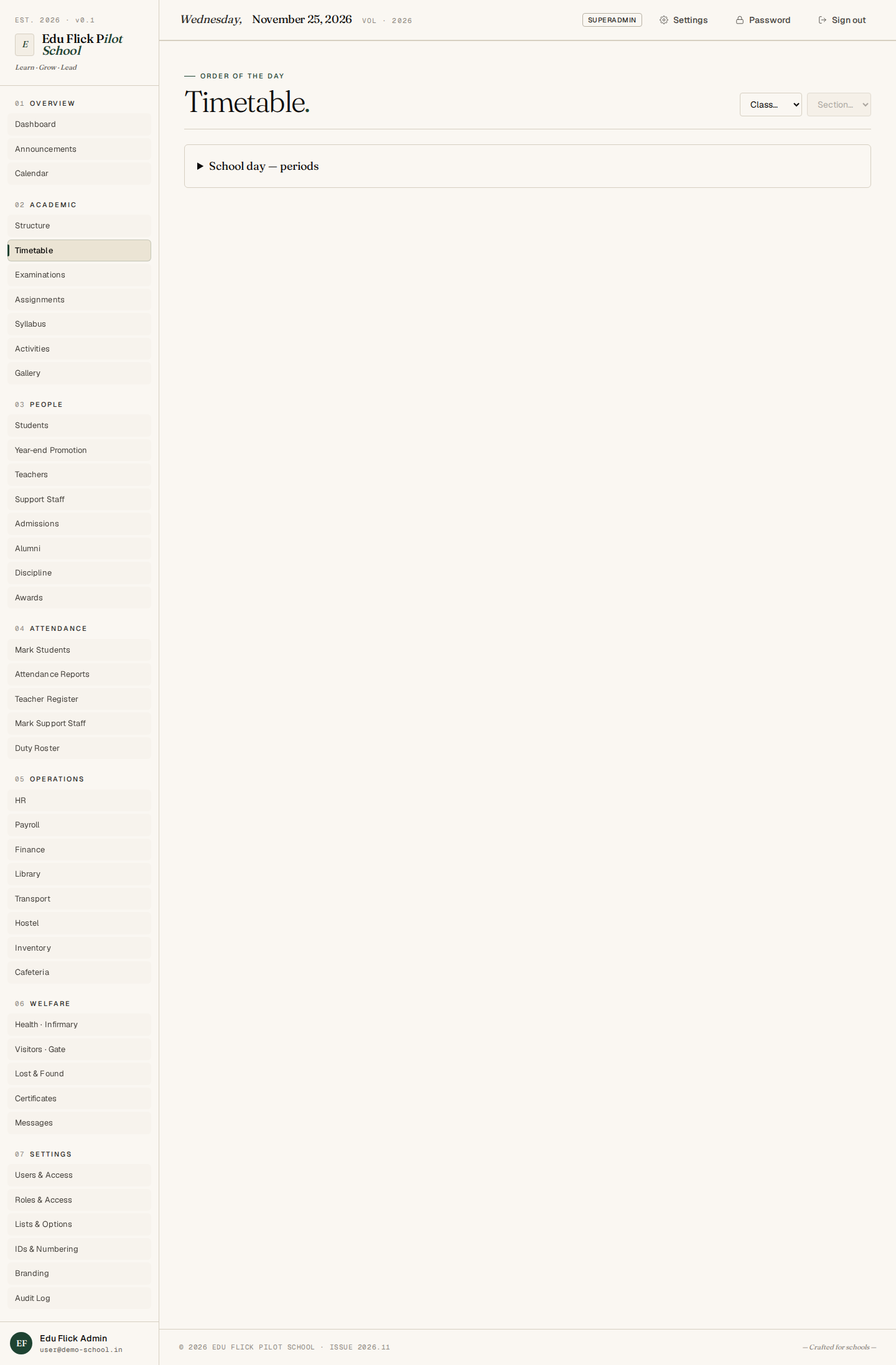
- Open Timetable and pick the class and section.
- Click a period on a day.
- Choose the subject and teacher (and a room if you like), then save the lesson.
- Repeat for the week. Use Download PDF to print it.
Cover an absent teacher
- Open the class timetable and the lesson that needs cover.
- Choose the date and the substitute teacher and save.
- The substitute sees it in their week; the absent teacher sees it as covered.
Good to know
Rules the system applies
- A teacher cannot be given two lessons in the same period on the same day; the save is refused and names the clash.
- Changing the period timings updates every class timetable that uses them.
- Families only ever see their own child's class.