Apply for leave and approve it
Apply (Teacher)
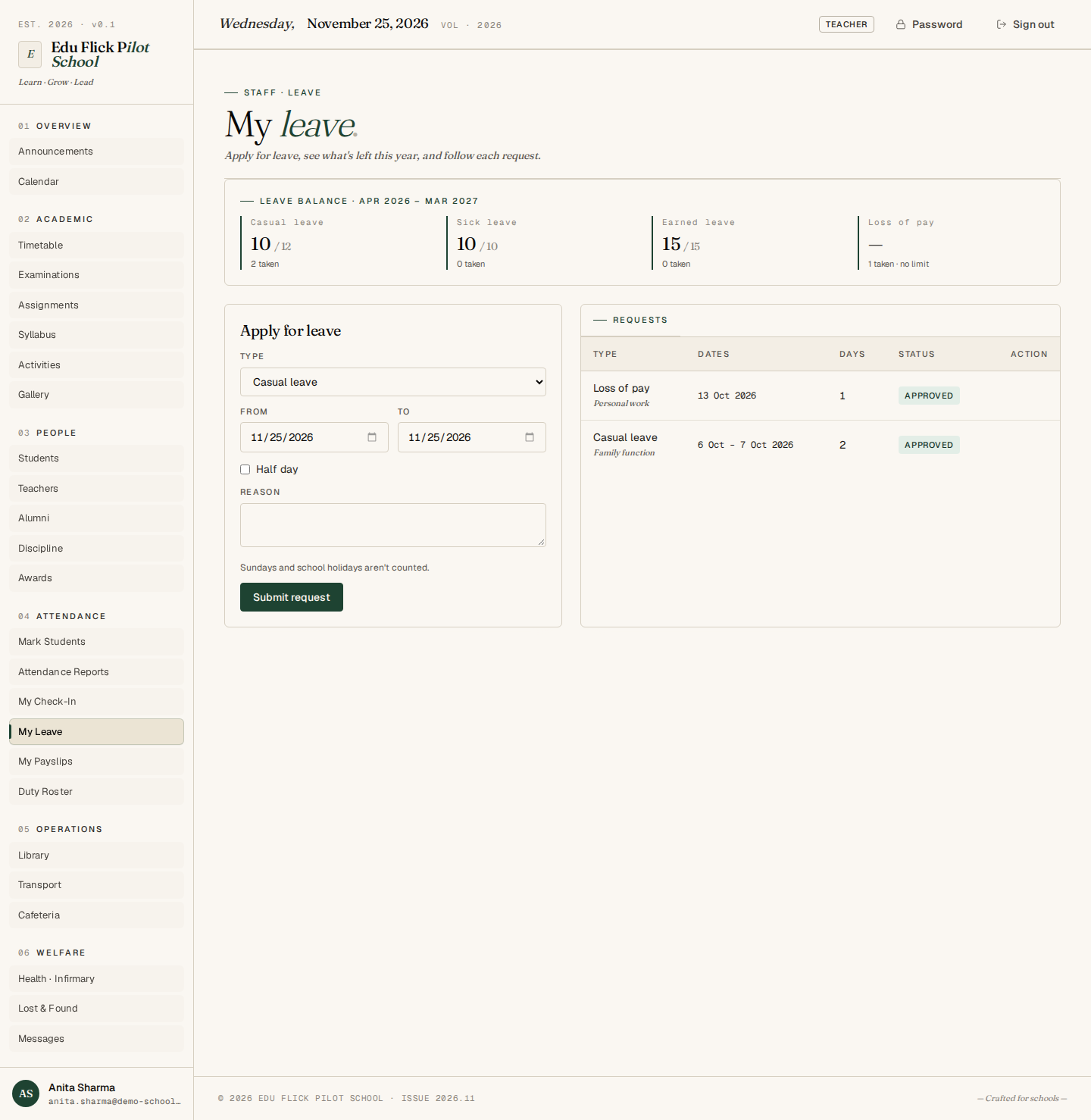
Where: Attendance → My Leave
- Open Attendance → My Leave. The top shows your leave balance for the year per leave type (casual, sick, earned …) and how much you have taken.
- Under Apply for leave, pick the Type, the From and To dates, and tick Half day if it is half a day.
- Write a Reason and press Submit request.
- Your request appears under Requests as pending, then approved or rejected.
Sundays and school holidays (from the Calendar) are not counted. Loss of pay has no limit, but is deducted from your salary.
Approve or reject (Principal, SuperAdmin)
Where: Operations → HR
- Open Operations → HR. Pending requests shows how many are waiting.
- Under Leave requests, check the teacher, type, dates and reason.
- Press Approve, or press Reject and type the reason when asked.
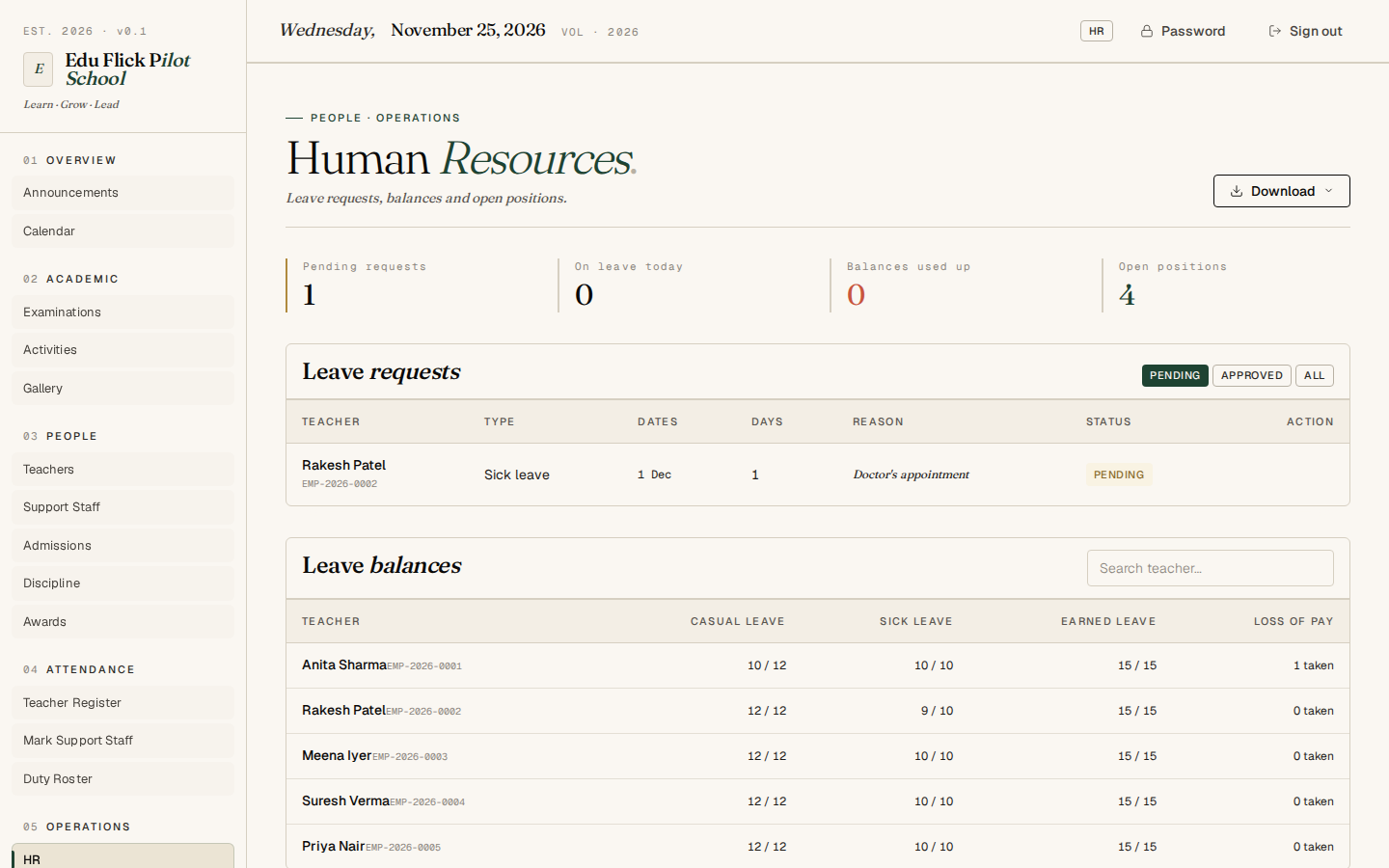
HR staff see the same list and the balances, but only the Principal or SuperAdmin can decide.
Approved leave updates the teacher's balance and the payroll (loss-of-pay days). More: Staff leave.