SuperAdmin guide
The SuperAdmin runs Edu Flick for the school: sets it up, creates accounts and can open every screen. Only another SuperAdmin can change a SuperAdmin account.
After you sign in
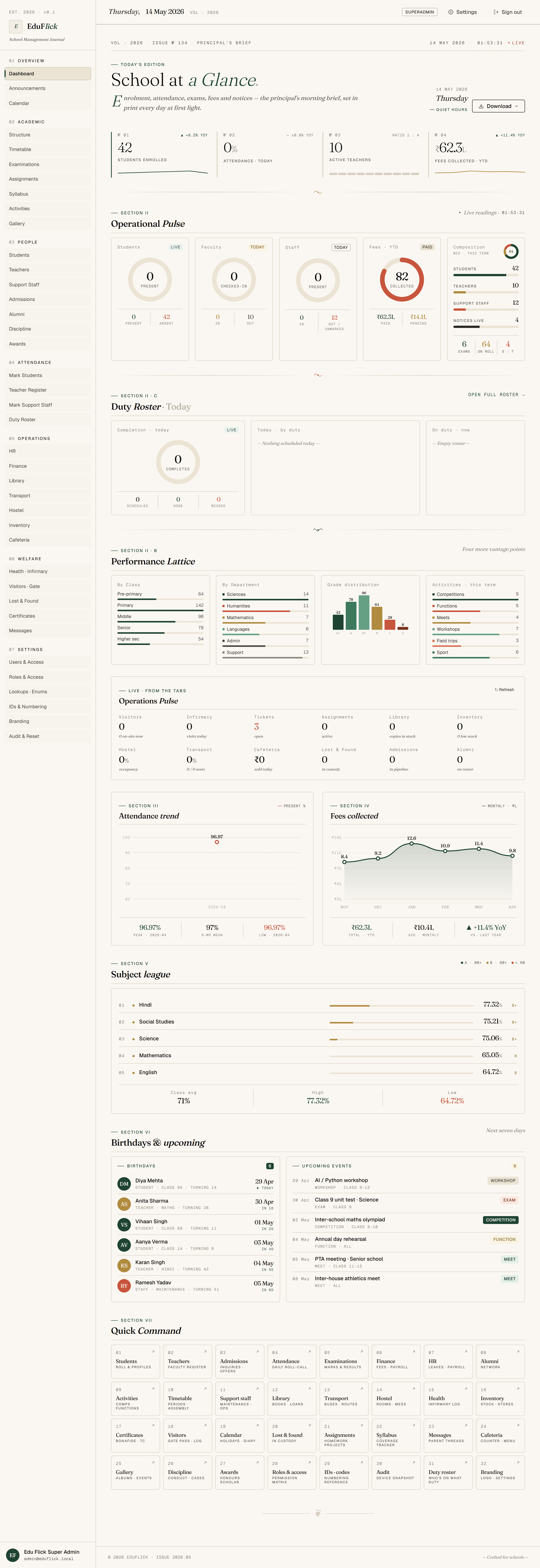
You land on the Dashboard: today's attendance, fee collection, staff on duty, upcoming events and birthdays. The sidebar shows every module, grouped as Overview, Academic, People, Attendance, Operations, Welfare and Settings. Settings at the top right opens Branding.
Everyday tasks
| Task | Where |
|---|---|
| Set up a new school | First-time school set-up |
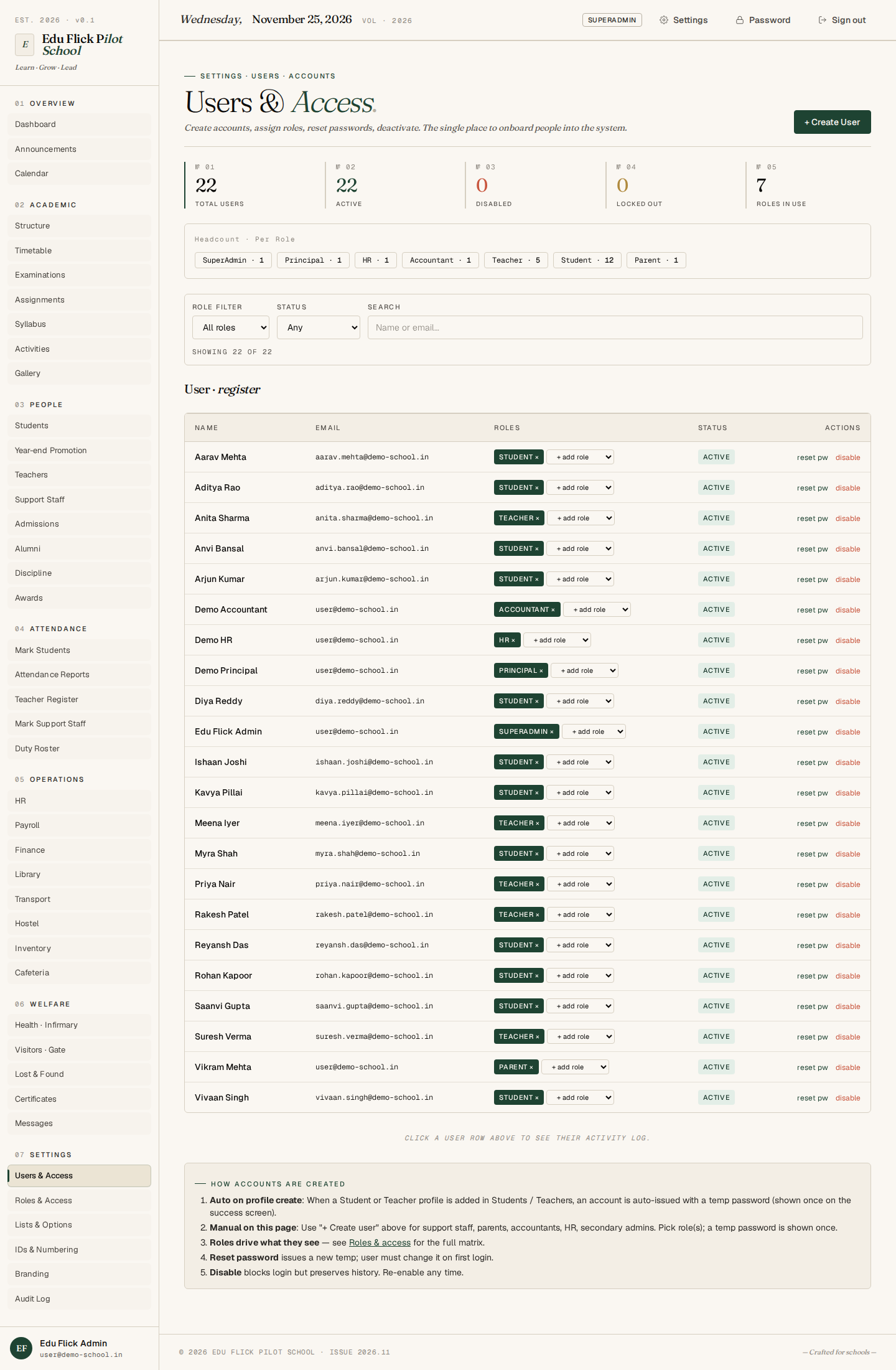
| Create an office user (Accountant, HR, Principal) | Settings → Users & Access → + Create User |
| Reset someone's password | Settings → Users & Access → reset pw on their row |
| Turn off a user's two-factor (lost phone) | Settings → Users & Access (reset 2FA) |
| Disable a user who has left | Settings → Users & Access → disable (history is kept) |
| See who changed what | Settings → Audit Log |
| Reopen an approved payroll month | Operations → Payroll (SuperAdmin only, a reason is required) |
Everything a Principal does, you can do too — see the Principal guide.
Keep this account safe
Turn on two-factor sign-in and do not share the SuperAdmin login. Give office staff their own accounts with the role they need.