Signing in and your account
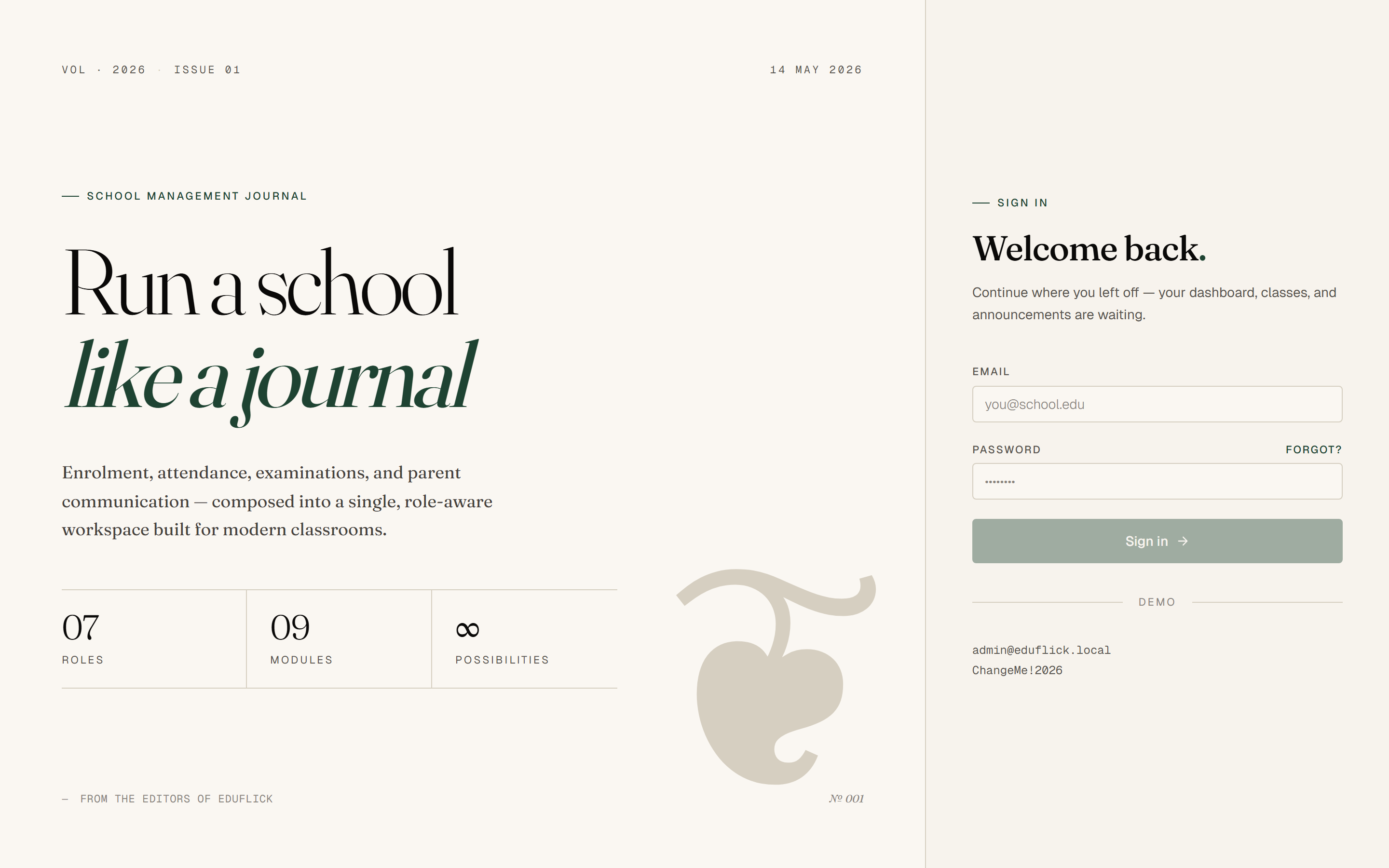
Everyone — staff, parents and students — signs in on the same page with their e-mail address and password. What you see after signing in depends on your role.
Your first sign-in
The school office creates your account and gives you a temporary password (it is shown to them only once, so ask them if you did not receive it).
- Open your school's Edu Flick address in a browser (phone or computer).
- Enter your e-mail and the temporary password, then press Sign in.
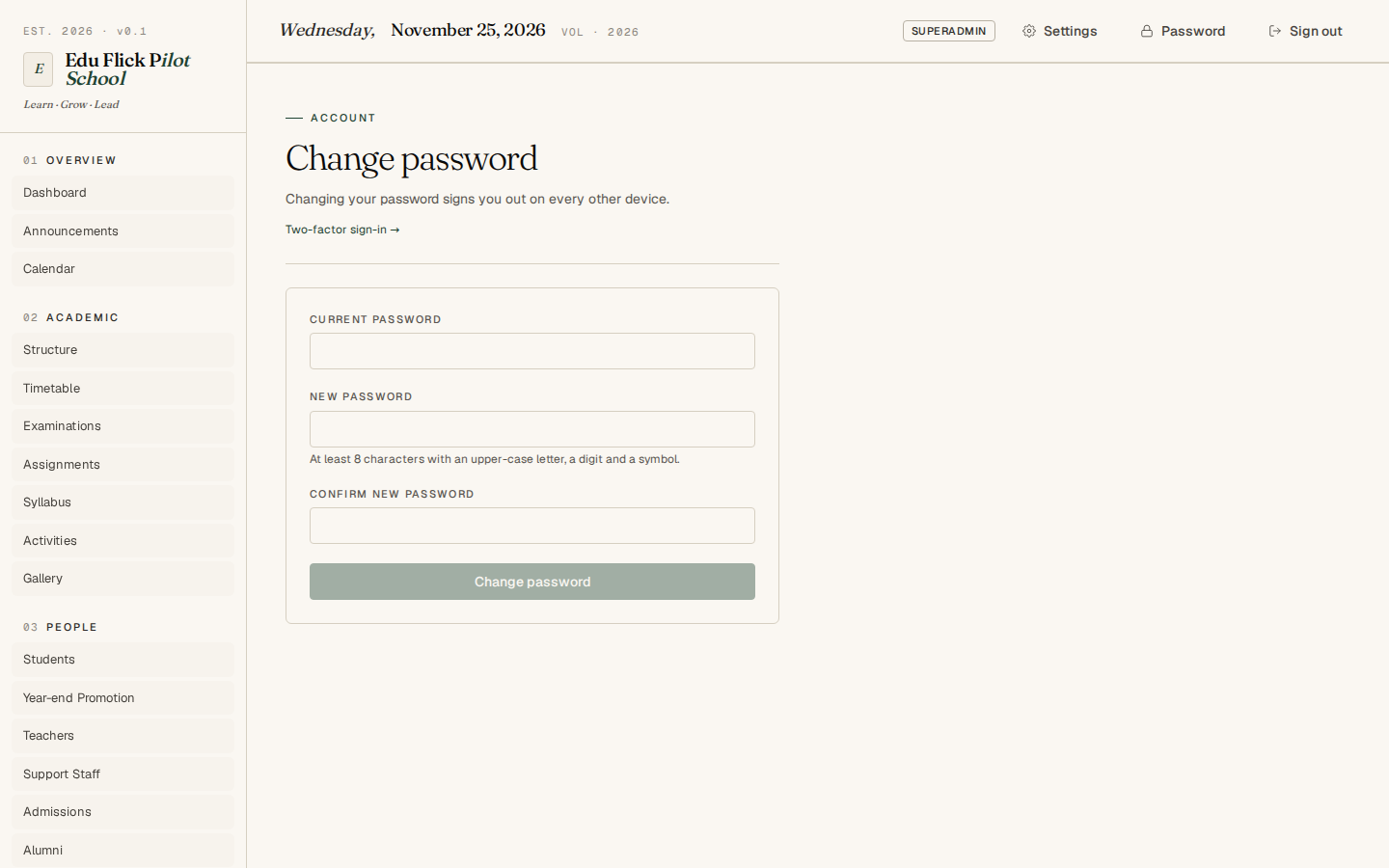
- Edu Flick takes you straight to Change password with the note "You signed in with a temporary password. Choose your own password to continue."
- Type the temporary password under Current password, then your new password under New password and again under Confirm new password.
- Press Change password. You are taken to your home screen.
A password needs at least 8 characters, including a capital letter, a number and a symbol
(for example !, @ or #).
Changing your password later
- Press Password at the top right of any screen.
- Fill in Current password, New password and Confirm new password.
- Press Change password. You see "Password changed."
Changing your password signs you out on every other device (handy if you think someone else knows it).
Forgot your password?
There is no self-service reset yet. Ask your school's SuperAdmin or Principal to reset it: they open Settings → Users & Access, find you and press reset pw. You receive a new temporary password and choose your own at the next sign-in (see above).
Students' passwords can also be reset from the student's profile.
Two-factor sign-in (recommended for Principal and SuperAdmin)
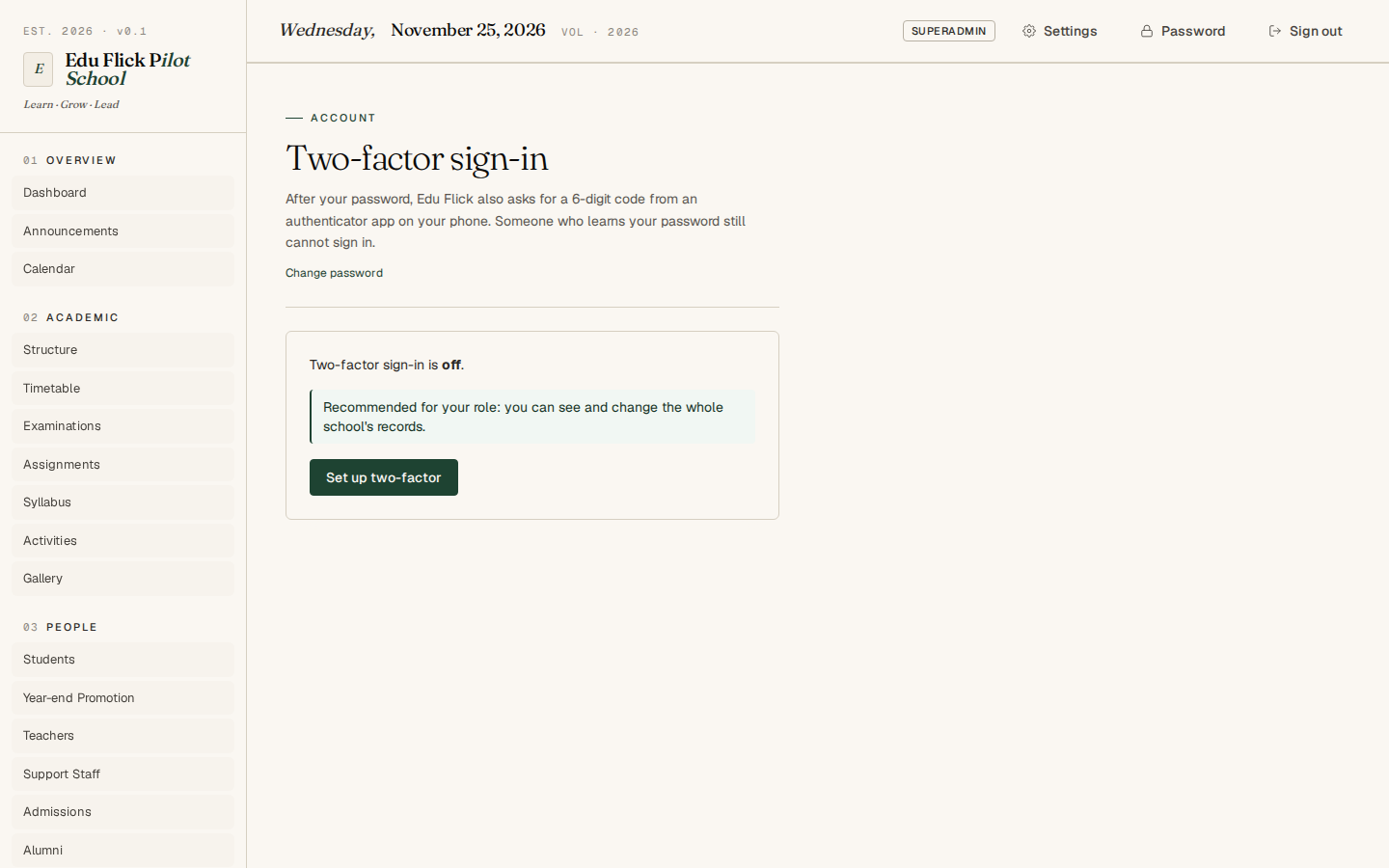
Two-factor sign-in asks for a 6-digit code from an authenticator app on your phone (Google Authenticator, Microsoft Authenticator or similar) every time you sign in, so a stolen password alone is not enough.
Turn it on:
- Press Password at the top right, then Two-factor sign-in →.
- Press Set up two-factor.
- In your authenticator app, add an account and choose "enter a set-up key". Type the account name and the key shown on the screen. (On the phone itself you can tap Open in authenticator app instead.)
- Type the 6-digit code the app shows into Enter the 6-digit code the app shows and press Turn on. You see "Two-factor sign-in is on."
Signing in with it: after your e-mail and password, a Verification code box appears. Type the 6-digit code from the app and press Verify and sign in.
Turn it off: on the same page, enter your password under "To turn it off, enter your password" and press Turn off two-factor.
Lost your phone? A SuperAdmin or Principal can turn two-factor off for you under Settings → Users & Access (reset 2FA). Then set it up again on your new phone.
Locked out
After 5 wrong passwords in a row the account is locked for 15 minutes; the sign-in page says "Account is locked. Try again later." Wait 15 minutes, or ask the office to reset your password.
Signing out
Press Sign out at the top right. On a shared computer, always sign out when you finish.