Run monthly payroll
Who: HR, Principal, SuperAdmin (the Accountant can view) · reopening an approved month: SuperAdmin only. · Where: Operations → Payroll
Before the first run: salaries
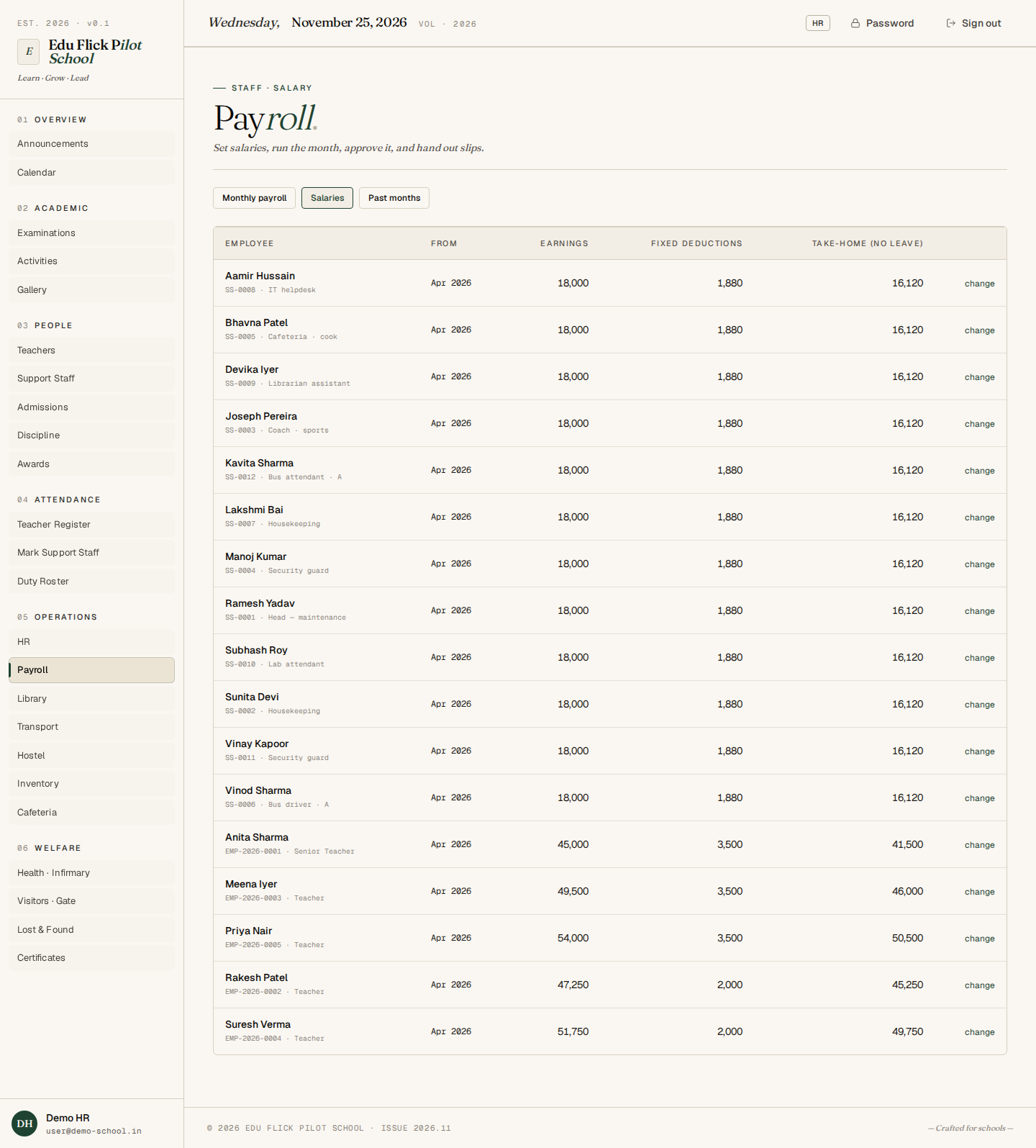
- Open Operations → Payroll and press the Salaries tab.
- Every teacher and support-staff member is listed. Press set salary on the row of anyone without one (or change to update a salary).
- Fill in Takes effect from, the earnings (Basic, HRA, DA, Special allowance) and the deductions (Provident fund, Professional tax, TDS, Loan EMI), then press Save. A change later on takes effect from the month you choose; the old salary is kept.
Each month
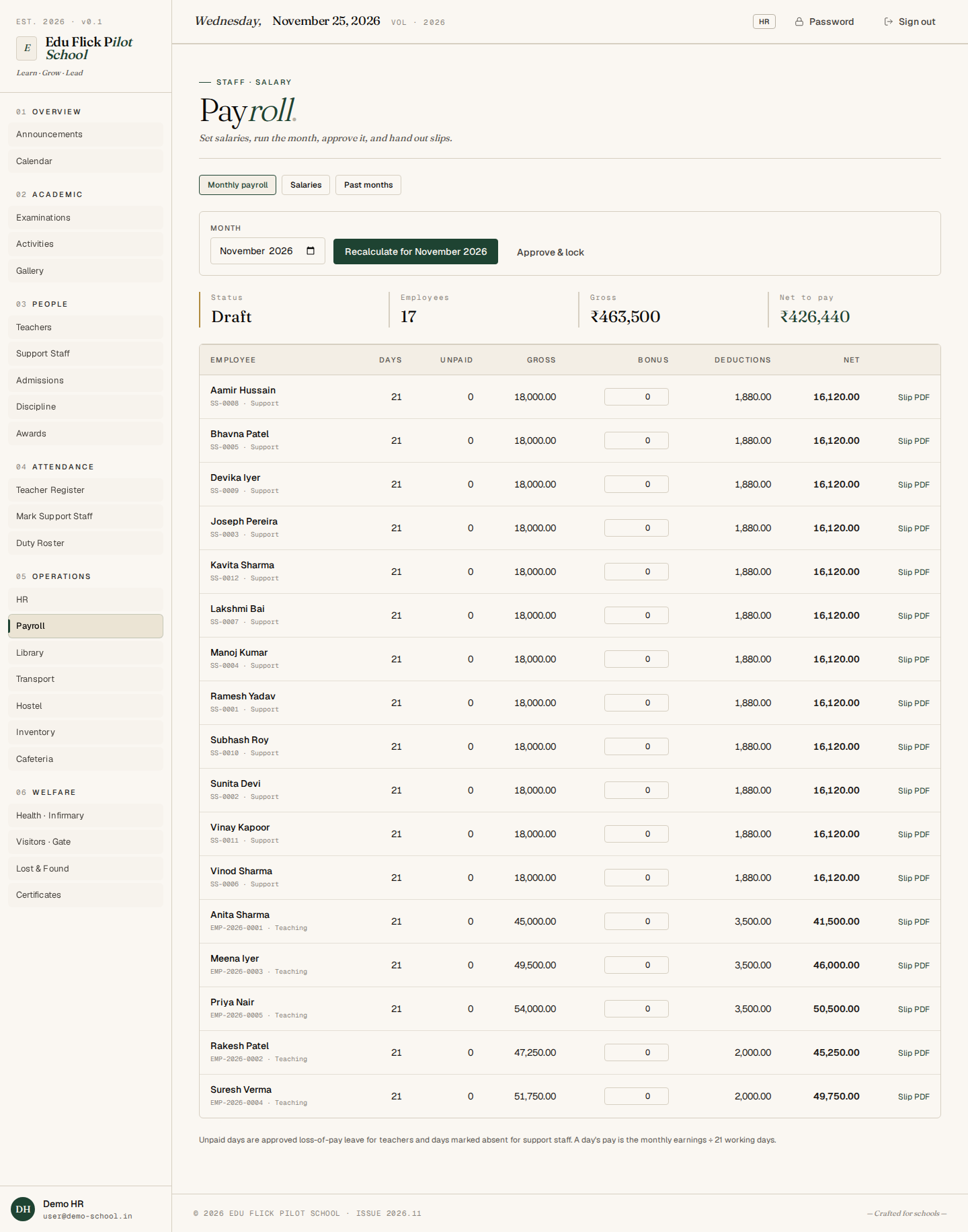
- Press the Monthly payroll tab and pick the Month.
- Press Run payroll for month (e.g. Run payroll for November 2026). A draft slip is made for every employee with a salary. Anyone without one is listed under No salary set for — press Set salaries to fix it.
- Check the slips: working Days, Unpaid days, Gross, Deductions and Net. Hover over a deduction to see PF, PT, TDS, EMI and unpaid days separately.
- Type a Bonus on any slip if needed.
- If leave or attendance changed after the run, press Recalculate for month (bonuses stay).
- Press Approve & lock and confirm. The month is final, and teachers see their slips under My Payslips. Support staff have no sign-in: download their slips with Slip PDF.
- Press Slip PDF on a row to download one slip.
Good to know
- Working days come from the calendar: Sundays, holidays and vacations don't count.
- Unpaid days: approved loss-of-pay leave (teachers), or days marked absent — half for a half day — (support staff).
- A day's pay = (basic + HRA + DA + special) ÷ working days.
- An approved month can't be changed. A SuperAdmin can press Reopen (override) and give a reason; it is recorded in the Audit Log.
- Past months and their totals are on the Past months tab.
More: Payroll.