Collect a fee and print the receipt
Who: Accountant, Principal, SuperAdmin (cancelling a payment: Principal, SuperAdmin). Where: Operations → Finance
Find who owes
- Open Operations → Finance and press the Dues tab.
- Every student with a bill past its due date is listed with the overdue amount, the late fees in it, the oldest due date and the days overdue. Narrow it with Class.
- Press collect on the student's row. You land on Collect with their fee ledger open.
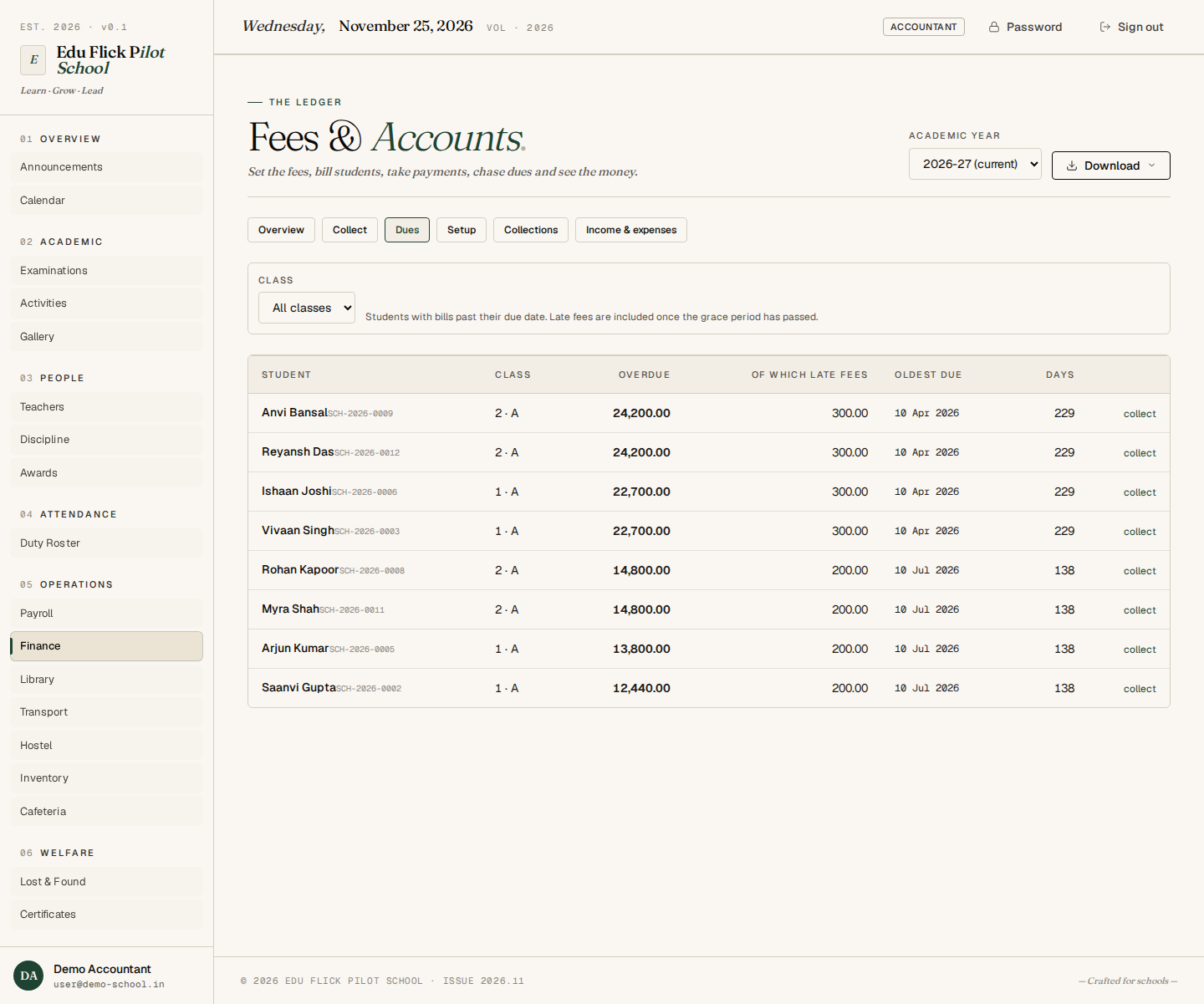
You can also start from the Collect tab: type the student's name or code in Student and choose them in Pick.
Take the payment
- Check the student's Bills: each instalment with its due date, amount, late fee, what is paid and the balance.
- Under Take a payment enter the Amount (₹), or press overdue … or all … to fill it in.
- Choose the Mode: Cash, Cheque, Online, UPI or Card. For anything but cash, enter the Cheque / txn no.
- Change Date only if the money came in on an earlier day.
- Press Record & receipt. The receipt PDF (e.g. RCT-2026-0042) downloads; print it or send it to the parent.
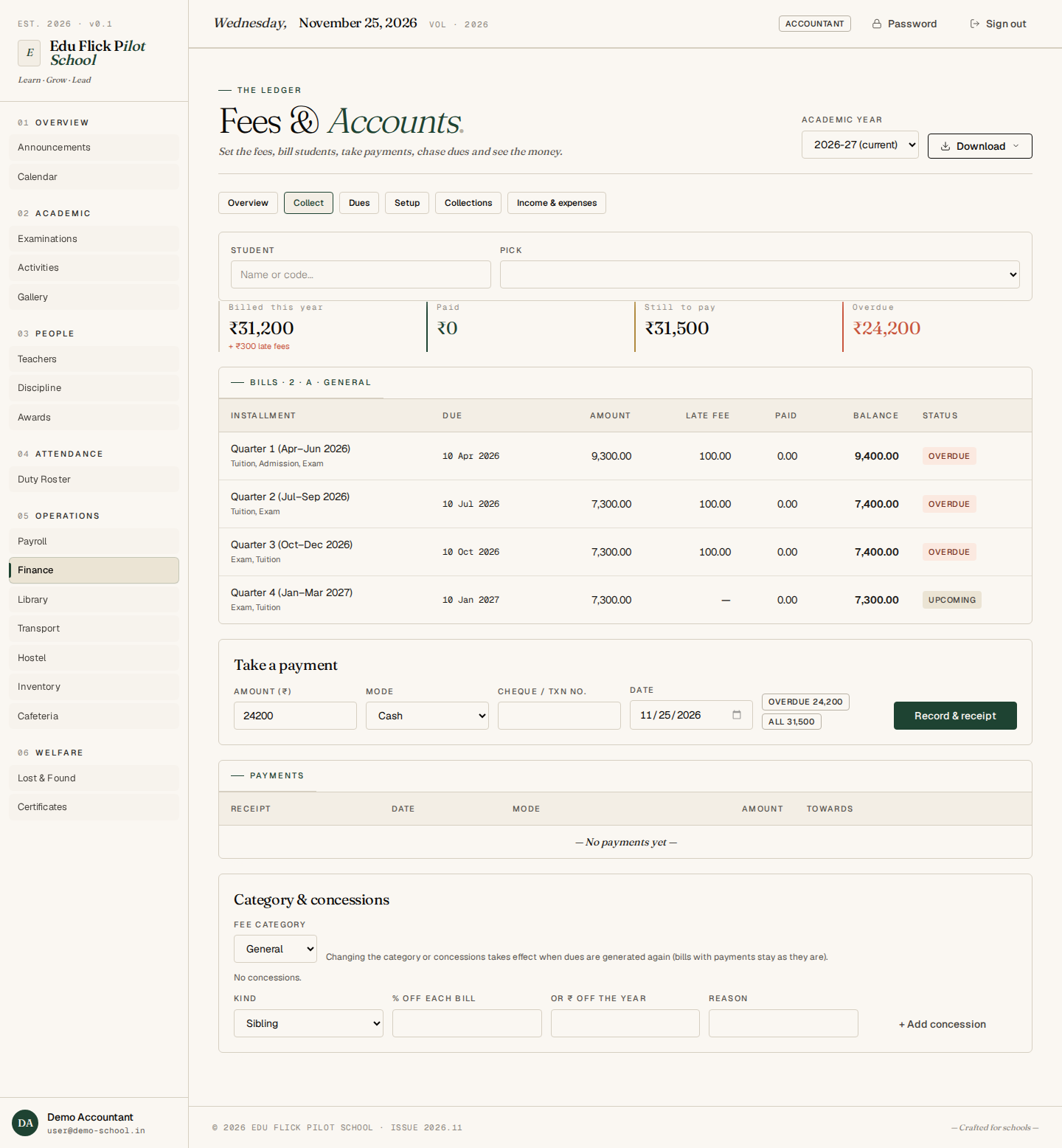
The payment settles the oldest bills first. It can't be more than the balance.
Print a receipt again
In the ledger's Payments list press Receipt PDF on the payment. Parents can download their receipts from My Fees.
Cancel a wrong payment (Principal or SuperAdmin)
- Open the student's ledger (as above) and find the payment under Payments.
- Press cancel, type the reason and confirm.
The payment is kept, marked cancelled with the reason, and the bill is open again. Receipt numbers are never reused. Record the correct payment as a new one.
More: Fees & accounts.