Enter exam marks and publish results
Who: marks — Teacher (own subjects), Principal, SuperAdmin · results — Principal, SuperAdmin. Where: Academic → Examinations
1. Set up the exam (Principal or SuperAdmin, once per term)
- Open Academic → Examinations.
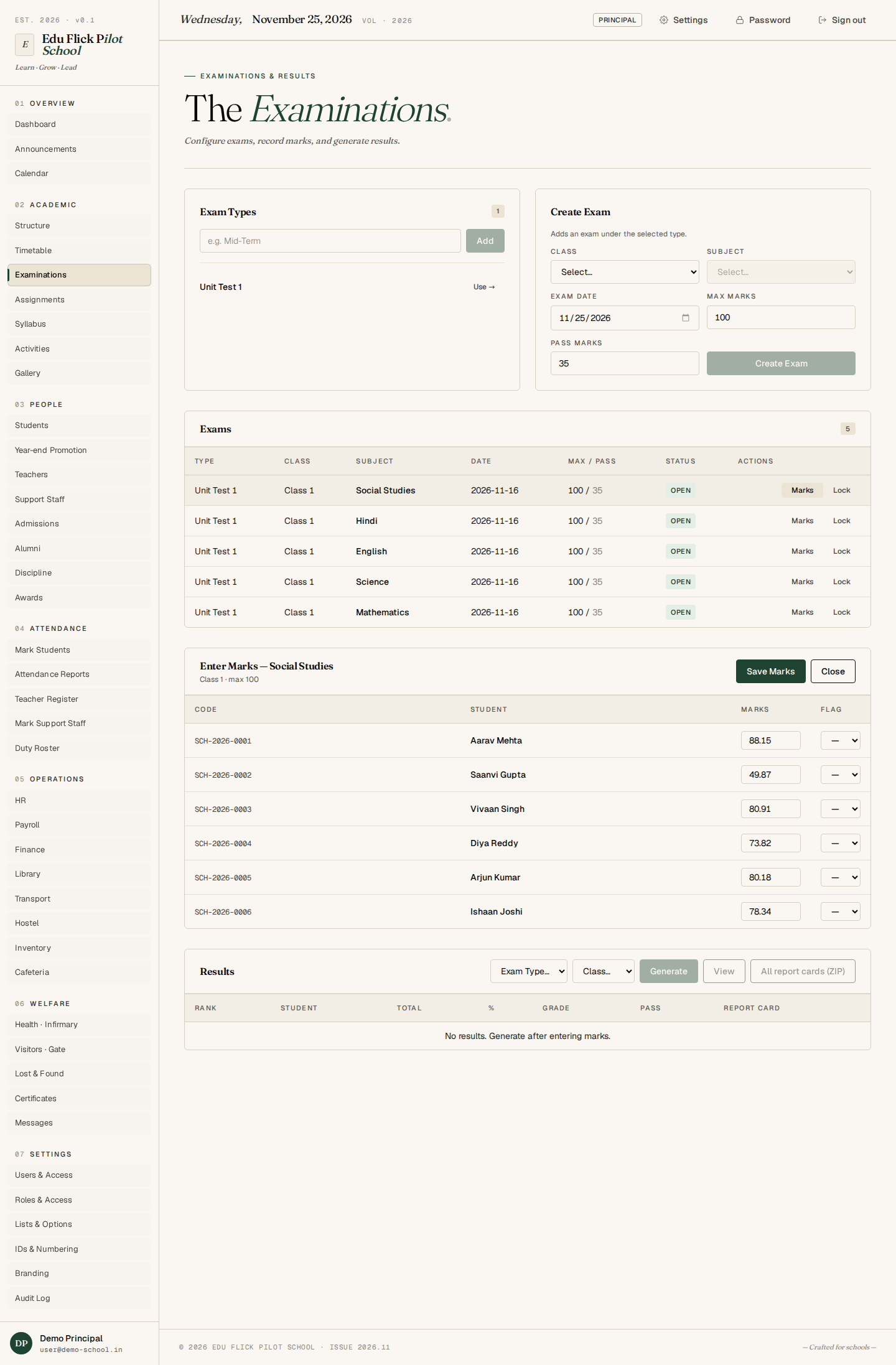
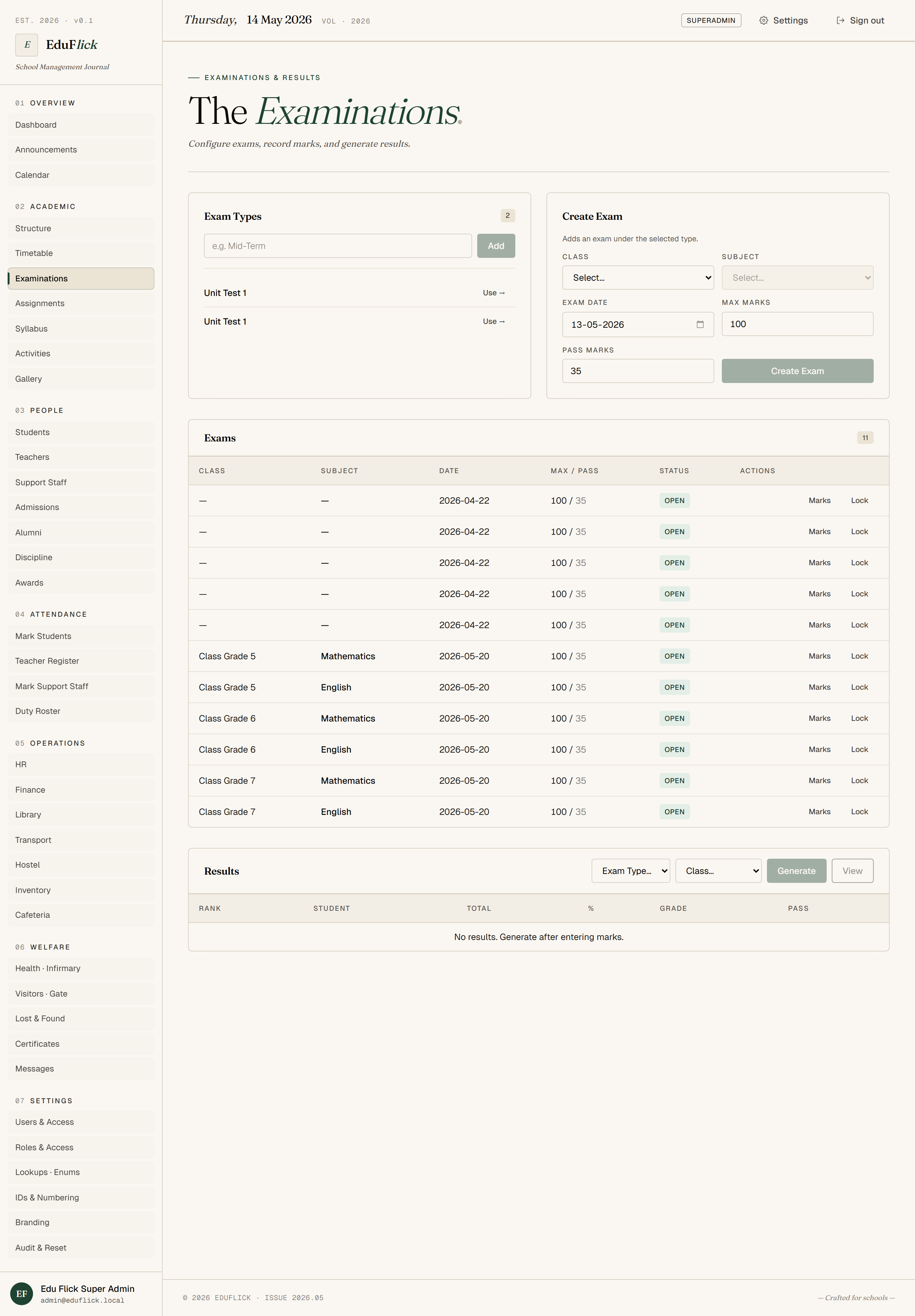
- Under Exam Types, type a name (e.g. Half-Yearly) and press Add. Press Use → next to the type you are setting up; it shows Selected ✓.
- Under Create Exam, choose the Class and Subject, set the Exam Date, Max Marks and Pass Marks, and press Create Exam. Repeat for every subject of the class.
The exams appear in the Exams table with the status open.
2. Enter the marks
- In the Exams table, press Marks on the exam's row. The Enter Marks grid opens with every student of the class.
- Type each student's marks. For a student who missed the paper choose AB in Flag (W = withheld). Leave a box empty if you don't have the mark yet.
- Press Save Marks. "Saved." appears under the grid. You can come back and change marks until the exam is locked.
Teachers
A teacher gets the grid only for a subject they are assigned to teach, and only with the students of their own sections. For any other exam it shows "You do not teach this exam's subject in this class."
3. Lock the marks (Principal or SuperAdmin)
When all marks are checked, press Lock on each exam's row. Locked exams show locked and nobody can change their marks. Press Unlock to correct a mistake.
Lock before you publish
After results are generated, every Save Marks on an unlocked exam updates the results that parents and students see, immediately. Lock the exams when the marks are final.
4. Generate and publish the results (Principal or SuperAdmin)
- In Results, choose the Exam Type and the Class.
- Press Generate. The table lists every student with total, percentage, grade, rank in the class and pass/fail.
- Generating publishes the results: parents and students see them under My Results straight away. Later mark corrections update the results automatically.
- Press PDF on a row for one report card, or All report cards (ZIP) for the whole class.
To look at results without recalculating them, choose the type and class and press View.
Good to know
- An absent (AB) or missing mark counts as 0 and fails that subject; failing any subject fails the exam.
- Grades: A+ from 90 %, A 80, B+ 70, B 60, C 50, D 40, F below 40.
- Every marks save, lock and result generation is in the Audit Log.
More: Exams & results.