Build a class timetable
Who: SuperAdmin and Principal build it. Teachers, students and parents can view and download it. Where: Academic → Timetable
Before you start, the school needs its classes and sections, subjects and teachers (First-time school set-up, steps 3 to 5).
1. Set the school day
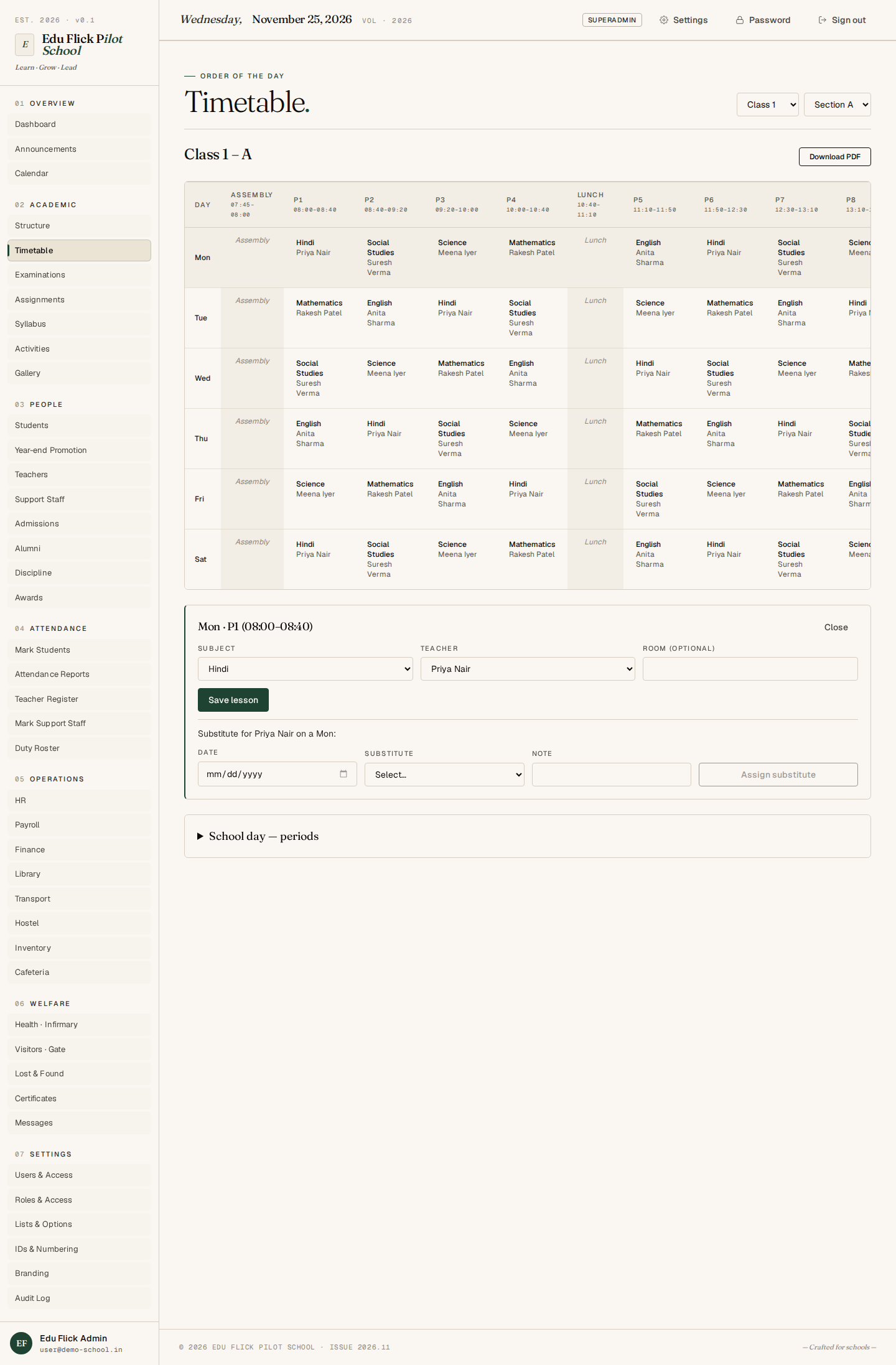
- Open Academic → Timetable and open School day — periods (it is open already when no periods exist yet).
- Give each period a label (for example P1), a start time and an end time.
- Keep lesson ticked for teaching periods. Untick it for assembly, breaks and lunch: those show greyed out and cannot be given a lesson.
- + Add period adds a row at the end; ✕ removes one. Remove only the last row: periods are matched by position, so removing one in the middle shifts the lessons under the wrong labels. To change a middle period, edit its label and times in place.
- Press Save periods. The notice Periods saved. appears.
Changing the period labels and times later updates every class timetable. A period that already has lessons can't be removed or turned into a break until its lessons are cleared (Save periods says so).
2. Fill in a class's week
- Choose the Class and then the Section at the top right. (A class with one section opens straight away.)
- The week is shown Monday to Saturday. Press a lesson period on a day; empty ones read + add.
- In the form that opens choose the Subject and the Teacher. Add a Room (optional).
- Press Save lesson. The grid now shows the subject and teacher.
- Repeat for the other periods.
If the teacher already has another class in that period, the save is refused and the message names the clash (for example "... already has Class 2-A in P3 on Monday"). Choose another teacher or another period.
To empty a period, open it, choose — Free period — and press Clear slot.
3. Print it
Press Download PDF above the grid for a landscape A4 timetable.
Cover for an absent teacher
- Open the class's timetable and press the lesson that needs cover.
- Under Substitute for … choose the Date (it must fall on the same weekday as the lesson), pick the Substitute and add a Note if you like.
- Press Assign substitute. A message names the teacher who will cover.
The substitute sees the lesson in My week as "cover on" that date, and the absent teacher sees "covered by".
More: Timetable.