Start a new academic year
Who: SuperAdmin and Principal. Where: Academic → Structure (the Academic Years section), then People → Year-end Promotion
Do this at the end of each school year. The order matters: copy the classes into the new year before you promote students into it, and make the new year current last.
1. Add the new year
- Open Academic → Structure. The Academic Years section is on the left.
- Enter the Label (for example 2027-28), Start Date and End Date.
- Leave Mark As Current unticked, then press Add Year. The new year appears with 0 classes.
2. Copy the classes into it
- On the new year, press Copy classes.
- Under Copy from, choose the year to copy. Each year shows its number of classes.
- Leave Also copy class teachers and subject teachers ticked to carry teachers over. Resigned teachers are skipped.
- Press Copy (or Cancel). A message tells you what was copied, for example Copied into 2027-28: 10 classes, 20 sections, 60 subjects, 55 subject-teacher assignments.
The new year now shows its class count. Students are not moved by this step.
Note
Copy classes is refused if the new year already has classes, if the year you copy from has none, or if both are the same year. Fee structures, exam types, timetables and syllabus are not copied: set them up afresh for the new year.
3. Promote the students
- Open People → Year-end Promotion.
- Under From, keep last year. Under To, choose the new year (it is chosen for you when it exists).
- Choose the Class and Section on each side, tick the students who stay back, and press Promote section. Confirm the question.
- Repeat for each section. For the final class, choose Graduate (alumni) as the target instead.
Promoted students sit in the new year's classes and drop out of the current year's class lists until step 4, so do steps 3 and 4 together.
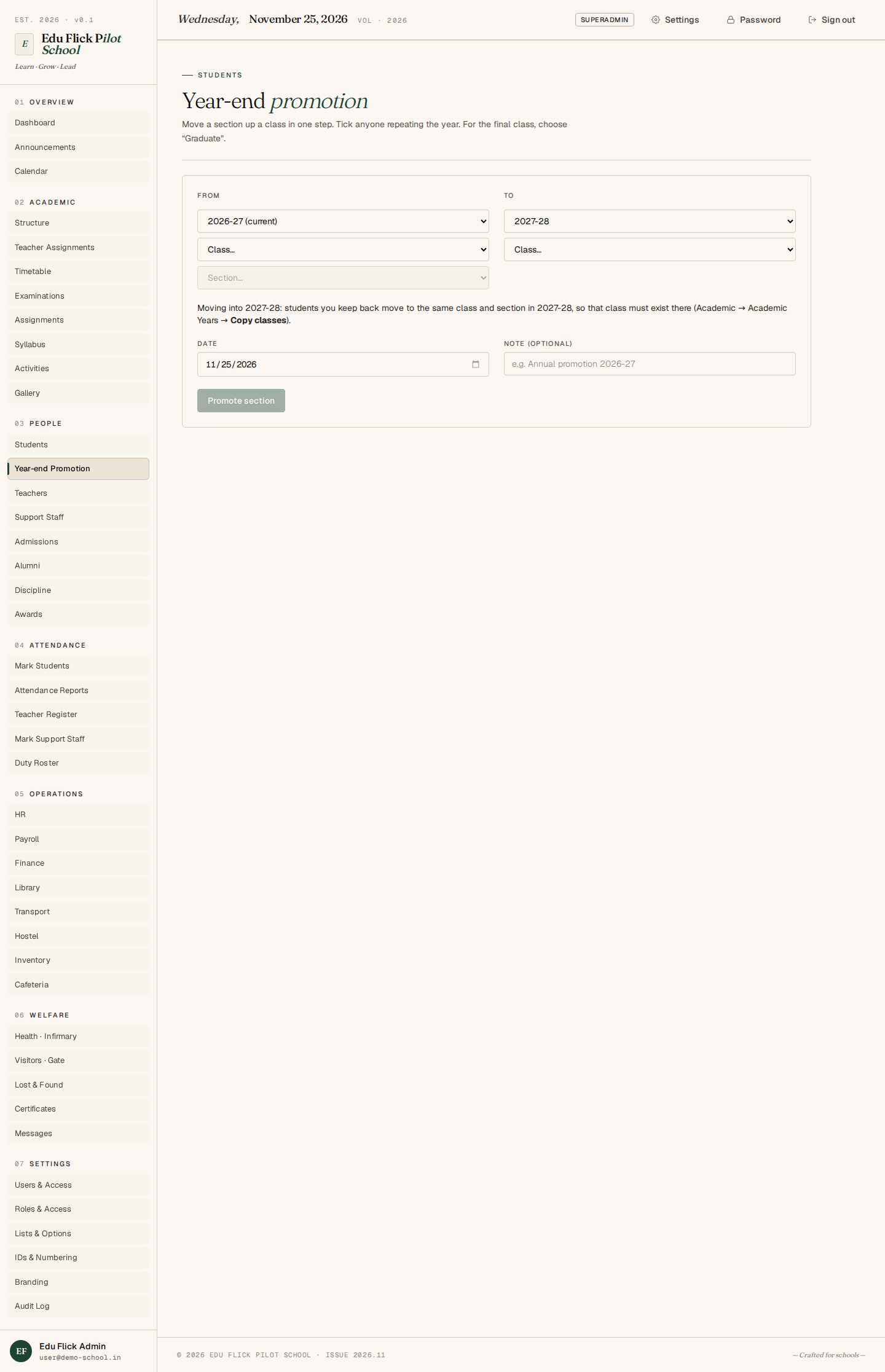
Students kept back move to the same class and section in the new year, so those must exist there. If you see "Students kept back move to the same class and section in the new year, but that class or section doesn't exist there yet", go back to step 2. Promotion into an earlier year is refused.
4. Make the new year current
- Return to Academic → Structure.
- Press Set Current on the new year.
Only now do the class lists across the app (Students, Timetable, Teacher Assignments, attendance) switch to the new year. Set Current copies nothing itself.
Then set up the new year's fee structures, exam types and timetables, and check Teacher Assignments.
More: Academic setup, Promotion & alumni.